
06/17/2026

How to process a final paycheck in Greenshades Payroll

Direct answer

Keep the employee Active in Greenshades until their final pay run completes — inactive employees are excluded from pay runs. For same-day or off-cycle terminations, run a special pay run, then mark the employee Inactive immediately after.

If pay was issued outside Greenshades, import it into Pay History. Choose your scenario below.

Which workflow applies depends on two things: when the termination falls relative to your scheduled pay run, and whether pay is being issued through Greenshades or was already handled outside it. The scenarios below cover each case. For state-mandated deadlines and what must be included in the final check, see the Final Paycheck Laws by State guide.

One thing worth knowing before you start: additional pay runs in Greenshades don't cost extra. If you need to run an off-cycle special run to meet a termination deadline, there's no per-run charge.

Scenario 1: Employee leaves before the next scheduled pay run

Use this when the termination falls within an open pay period and the final wages will process in the upcoming scheduled run.

  • Confirm the termination date and verify hours worked through that date are entered correctly.
  • Leave the employee's "Employment Status" as Active in Greenshades.
  • Verify PTO payout obligation based on your state and company policy. Add any required payout to the pay run before it closes.
  • Run the scheduled pay run. The employee's final wages process with the rest of the period.
  • After the pay run completes and the check is confirmed, mark the employee as Inactive.

Scenario 2: Employee needs to be paid before the next scheduled run

  • Confirm the termination date, hours worked through that date, and PTO payout obligation.
  • In Greenshades, create a new Special Pay Run and add only the terminated employee.
  • Enter earnings for the partial period. Check for overtime if hours crossed the weekly threshold.
  • Review state tax withholding — confirm it reflects the correct state(s) where work was performed.
  • Process the special pay run and confirm the check.
  • Mark the employee's "Employment Status" as Inactive immediately after the run completes. This prevents them from appearing in the next scheduled run. Greenshades does not generate a warning if an already-paid terminated employee is pulled into a subsequent run.

Scenario 3: Final pay was issued outside Greenshades

Use this when the final check was cut manually or through another system before it was processed in Greenshades.

  • Gather the details from the check that was issued: gross wages, tax withholdings, deductions, check date, and payment reference.
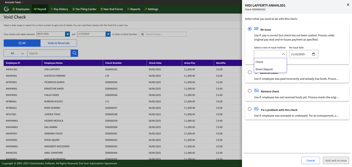
  • In Greenshades, navigate to Pay History and import the check record.
  • Verify the imported record matches the actual payment — gross wages, net pay, and withholding amounts should align exactly.
  • Mark the employee's "Employment Status" as Inactive after the import is confirmed.

For correcting a check that was already run through Greenshades incorrectly, see the guide on voiding and reissuing a paycheck.

Scenario 4: Employee is already inactive but still has wages owed

Use this when an employee was marked Inactive before all hours were captured or before a final run was processed.

  • Temporarily set the employee's status back to Active.
  • Disable their GOES (employee self-service) access so they cannot log in during this window.
  • Enter the outstanding hours manually via timesheet.
  • Run a Special Pay Run for the remaining wages and confirm the check.
  • Mark the employee as Inactive again immediately. Confirm GOES access remains disabled.

Quick-reference checklist

Applies to all scenarios.

  • Termination date confirmed and hours verified for the partial period
  • Employee's "Employment Status" remains Active until final pay run completes
  • Overtime checked for partial period
  • PTO payout obligation confirmed (state law + company policy)
  • Correct workflow selected: scheduled run, special run, or Pay History import
  • Tax withholding reviewed — including any state(s) where work was performed
  • Employee marked Inactive immediately after pay run confirms

Frequently asked questions

Does Greenshades automatically exclude a terminated employee from future pay runs?

Not until the employee's "Employment Status" is marked Inactive. Until that status change is made, they will appear in upcoming scheduled runs. Mark the employee Inactive immediately after their final pay run confirms.

What's the difference between a special pay run and a regular off-cycle run in Greenshades?

A special pay run is a standalone run you configure manually for one or a small number of employees. It lets you set the check date, control which earnings are included, and process outside the normal schedule. For off-cycle termination pay, a special run is the right tool.

Can I import a final paycheck into Greenshades if it was paid outside the system?

Yes — use the Pay History import. This records wages and withholding accurately without generating a new payroll calculation. See Scenario 3 above for the full steps. For questions about how Greenshades handles automated payroll tax deposits in relation to off-cycle runs, see the tax compliance platform overview.

Payroll built for the complicated stuff

Multi-state and full of edge cases. That's exactly what Greenshades is built for.

Request A Demo

Note: This information is for informational purposes only and does not constitute formal tax, legal, or compliance advice. Always consult with qualified tax advisors, legal counsel, and your organization's internal teams for guidance specific to your situation. Additional regulations may apply. For the most accurate and up-to-date information, refer to official government resources and regulatory agencies.

Our latest articles, thought leadership, and more

Get the latest updates from our company by subscribing to our newsletter. Stay up-to-date with our content, receive news about our products, and gain industry insights from our experts. Don't miss out on this valuable resource - sign up today!

By subscribing to our email updates, you agree with our Privacy Policy.